Setting Up an Account to Allow Team Driving
The electronic logging device (ELD) is equipped with a feature that allows users to simultaneously log in to a device to benefit from team driving functions. The use of this feature allows for the automatic interchange of driving periods between co-drivers
in case it has been mistakenly attributed. This feature also allows the co-driver to switch to their profile while maintaining the logging of activities to the profile of the driver behind the wheel. In other words, a co-driver can view their own logs while the ELD records driving on the profile of the driver behind the wheel.
Driver Account Configuration to Allow Team Driving
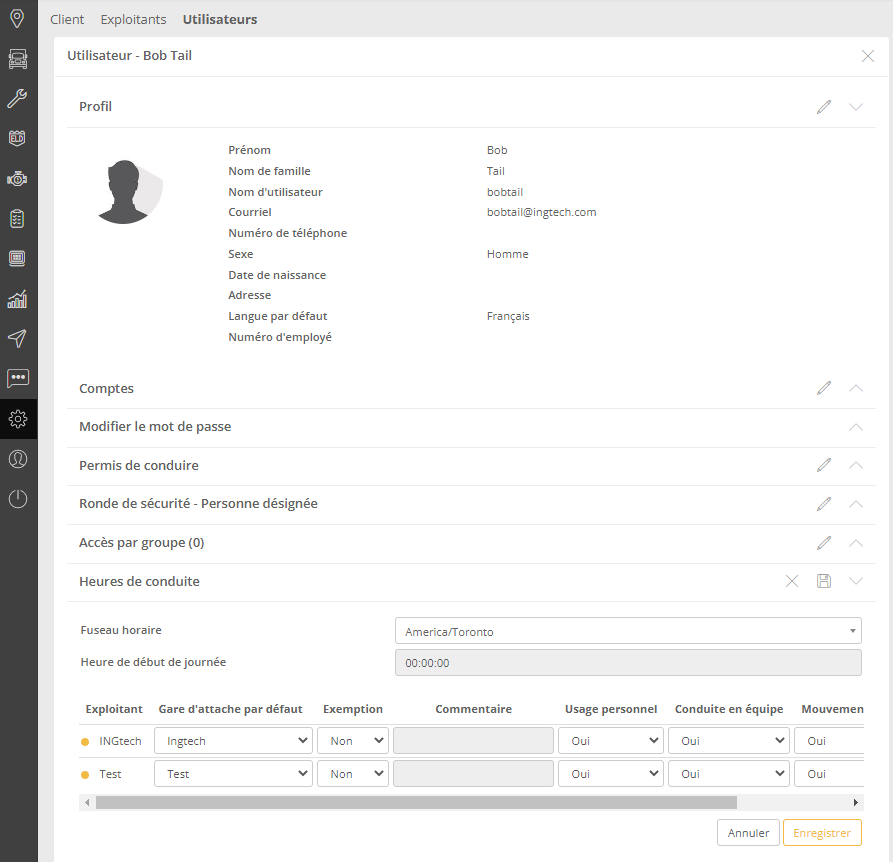
1. Log in to the web application managING ( www.ingtechmanaging.com ) with an Admin account type then navigate to the Users page under the Configuration tab.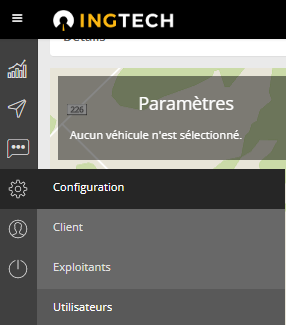 2. Select the driver's account profile to which you want to add the team driving permission. Under the Driving Hours tab, enable editing using the
button and change the Team Driving field to indicate Yes under the desired operator. Then Save.
Both co-drivers must have team driving permission to benefit from this feature.
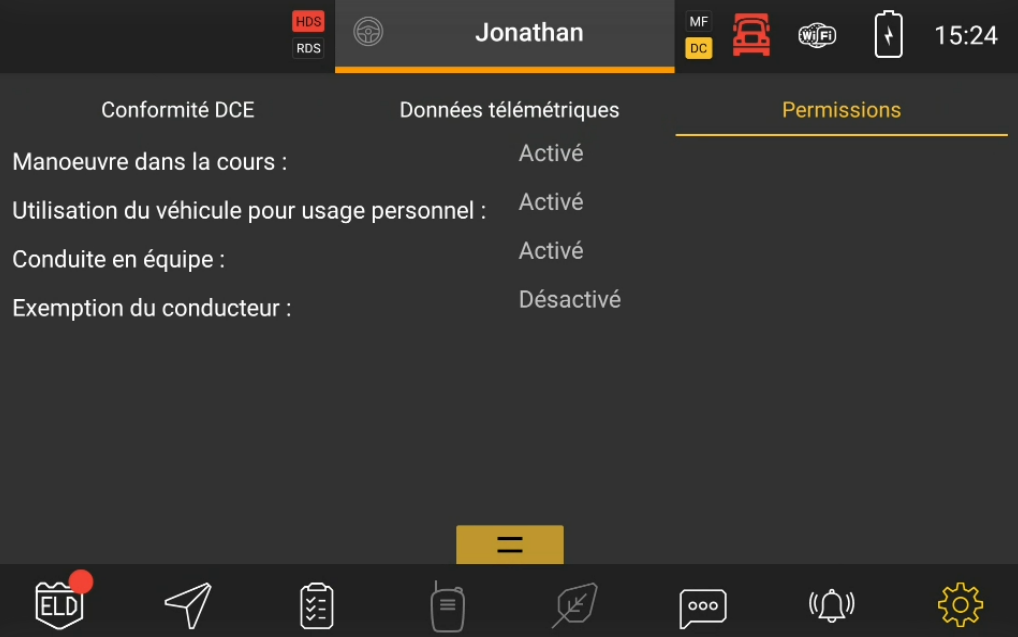
Verify Driver Account Permissions from the drivING Application
Using Team Driving FeaturesOnce logged into the drivING application, navigate under the Permissions tab found under the Configurationmenu.

Log in as a Co-Driver
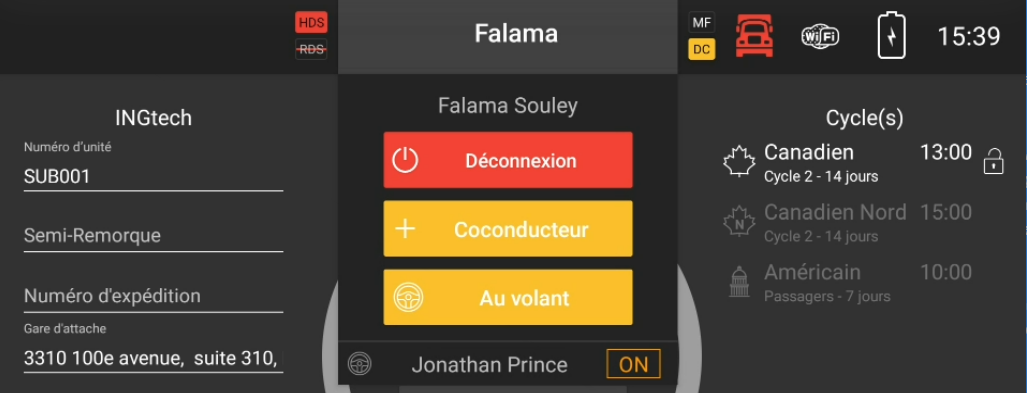
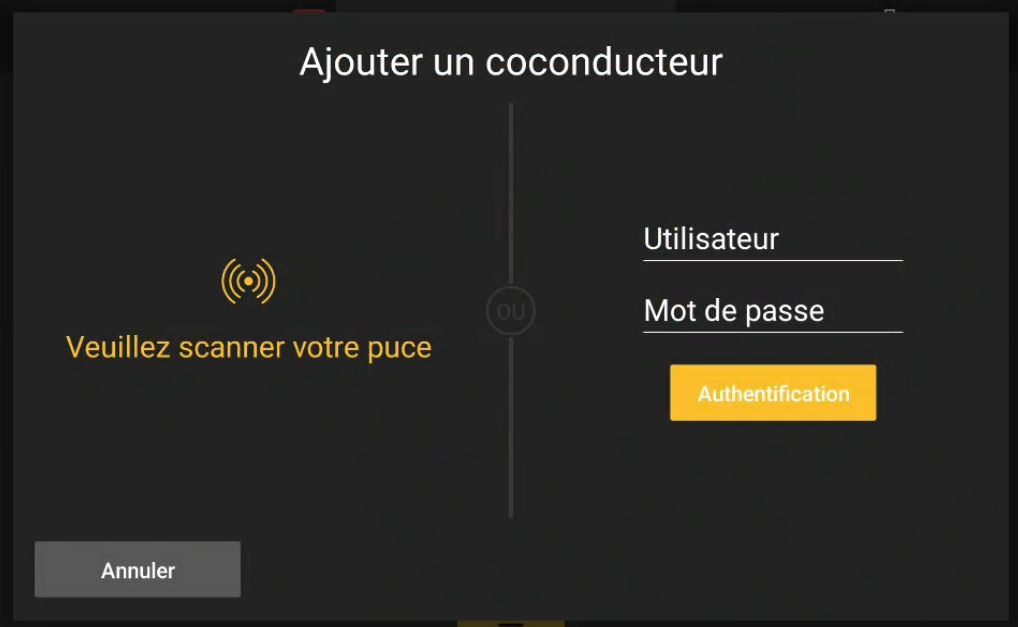
1. Log in the first driver in the drivING application.2. Press the first name of the driver to display the drop-down menu and select the +Co-Driver option. Identify the co-driver.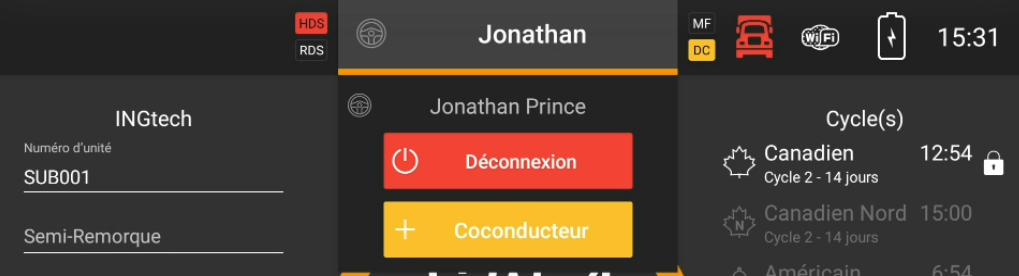
Switch Between Co-Driver and Active Driver Profiles
Press the first name of the current user to display the drop-down menu and select the desired user.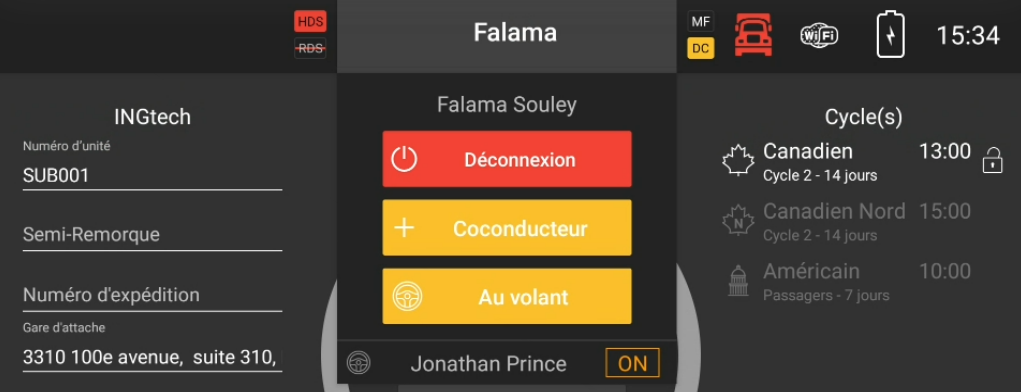
Change Driver at the Wheel.
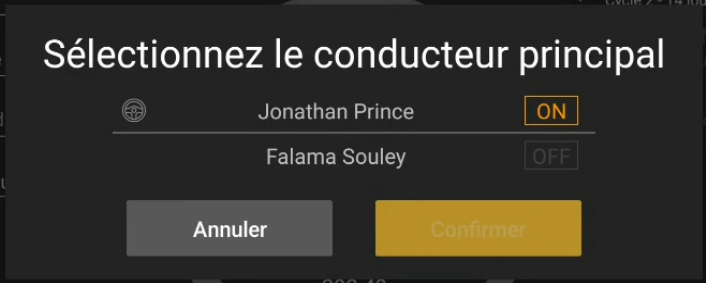
Press the first name of the current user and select At the Wheel . In the dialog box, select the driver to whom you want to assign the role of driver at the wheel. All activities of the ELD will now be logged to their profile. The iconindicates who is the driver at the wheel.